TL;DR
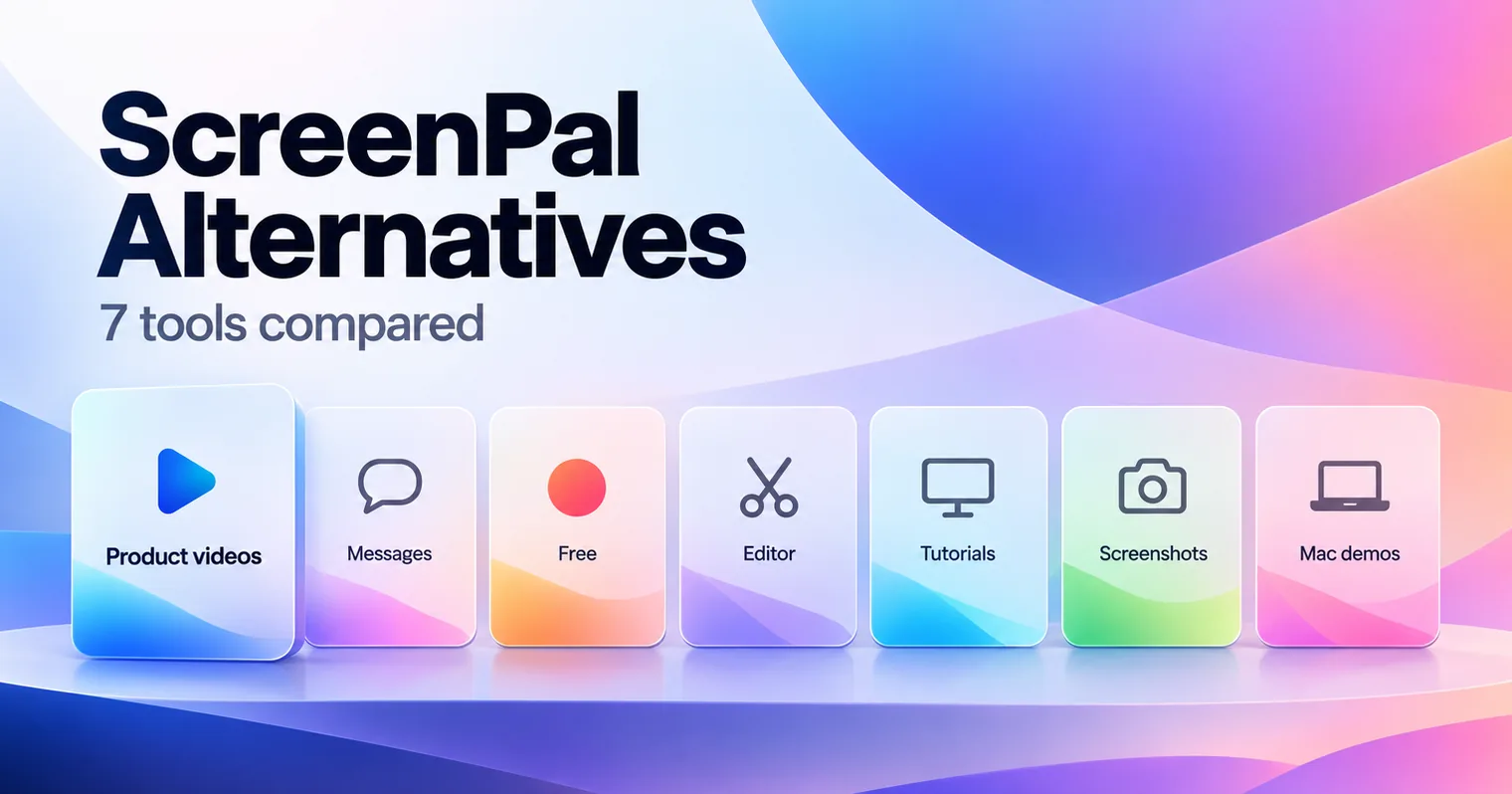
The best ScreenPal alternatives depend on what you record and who watches. GuideClarity is the pick for SaaS teams that want product demo videos and explainer videos generated from the live product, plus the docs, shorts and blog post. Loom suits quick messages, OBS Studio and Clipchamp are free, Camtasia suits deep editing, Snagit suits screenshots and Screen Studio suits polished Mac demos.
- GuideClarity, best for generating product demo videos and explainer videos from a live product feature automatically, plus the docs, shorts and blog post.
- Loom, best for quick video messages with monthly billing.
- OBS Studio, best for free, open source recording with no limits.
- Clipchamp, best for free browser editing with watermark-free exports.
- Camtasia, best for detailed tutorials on a desktop timeline.
- Snagit, best for screenshots, step guides and short captures.
- Screen Studio, best for polished product demos recorded on a Mac.
ScreenPal alternatives compared at a glance
The table compares the seven ScreenPal alternatives on the points buyers check first. Starting price is the cheapest paid plan, at the billing period the cell names. TechSmith's store showed euros from our location, so Camtasia and Snagit are in euros. We read every price on the vendor's own page on September 30, 2026.
| Tool | Best for | Starting price | Free plan | Biggest limitation |
|---|---|---|---|---|
| GuideClarity | Product videos, explainers, blog posts and other marketing assets from product features | $59 a month | Yes, 3 video guide recordings | Built for SaaS product content only |
| Loom | Quick video messages | $18 per user a month | Yes, 25 videos, 5 minute recordings | Light editing |
| OBS Studio | Free recording and streaming | Free, open source | Yes, fully free | No built-in editor |
| Clipchamp | Free browser editing | Premium with Microsoft 365 | Yes, 1080p with no watermark | 4K needs Microsoft 365 |
| Camtasia | Detailed tutorials | 182.49 EUR a year, Essentials | Editor free, exports watermarked | Higher price |
| Snagit | Screenshots and step guides | 39.56 EUR a year | No | Short captures, not long videos |
| Screen Studio | Polished Mac demos | $9 a month, yearly | No | Mac only |
Why people look for ScreenPal alternatives
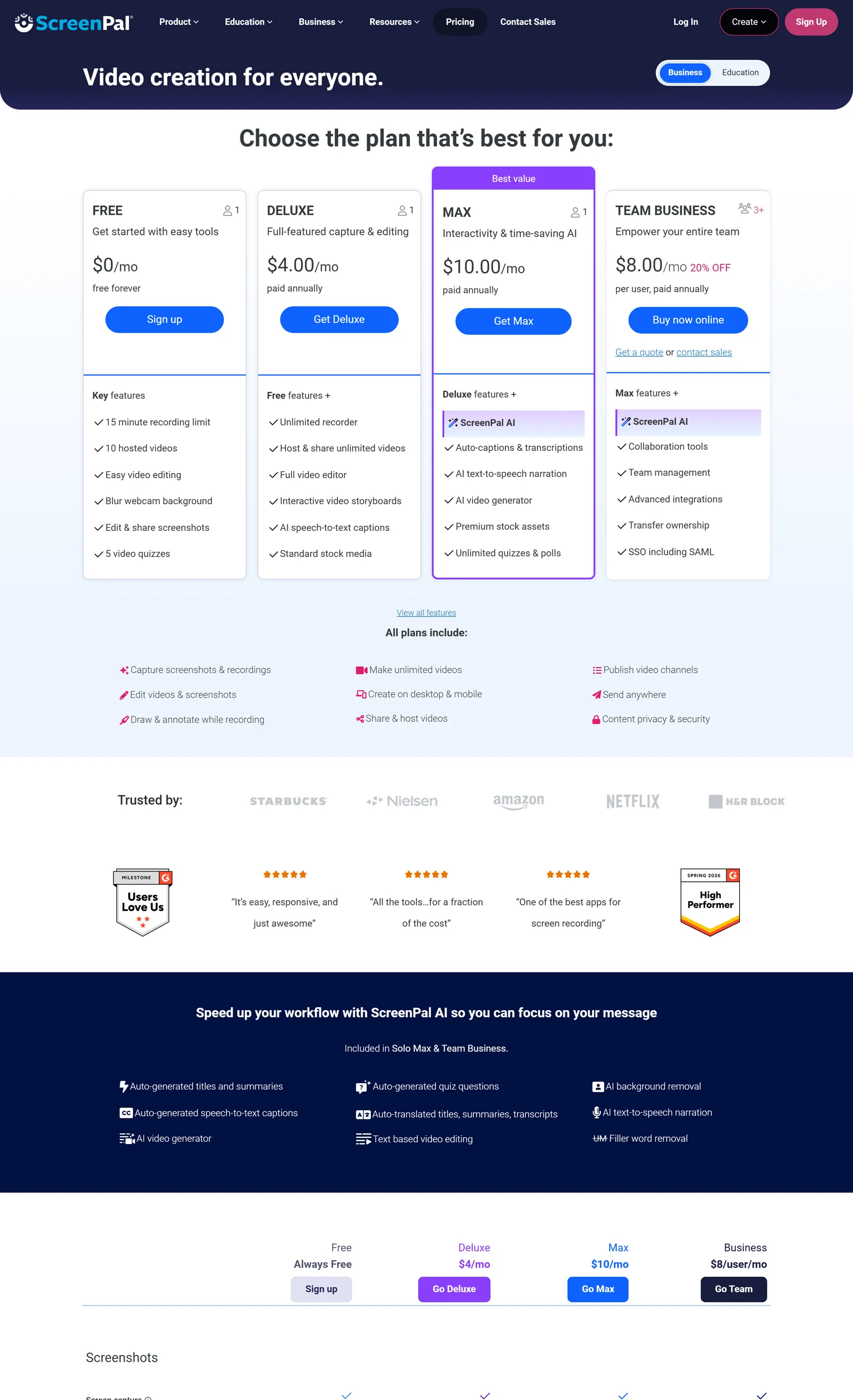
ScreenPal is a low-cost screen recorder and editor that runs on Windows, Mac, iOS, Android and Chromebook. Its paid plans are cheap, so price is rarely the reason to leave. Teams look elsewhere for four other reasons, all of them on ScreenPal's own plans page.
- Paid plans are annual. Deluxe costs $4.00 a month paid annually, and Max costs $10.00 a month paid annually. The plans page shows no monthly option.
- The free plan is tight. Free has a 15 minute recording limit and 10 hosted videos. That suits a trial, not a weekly habit.
- AI features need Max. ScreenPal AI is included in Solo Max and Team Business, so text-based editing and filler word removal are not on Deluxe.
- Teams pay per user. Team Business costs $8.00 per user a month paid annually for collaboration tools and SSO.
How we picked and checked these ScreenPal alternatives
A tool qualified when it records the screen or produces the videos a ScreenPal user makes today, from quick messages to tutorials. We started from the tools that appear most often across the top search results for ScreenPal alternatives and kept seven. Each one was judged on what it produces, how clear its pricing is, the caps on its free plan, and the team it fits.
- Own screenshots. Every homepage and pricing screenshot on this page is ours, taken on September 30, 2026 at 1440 pixels wide.
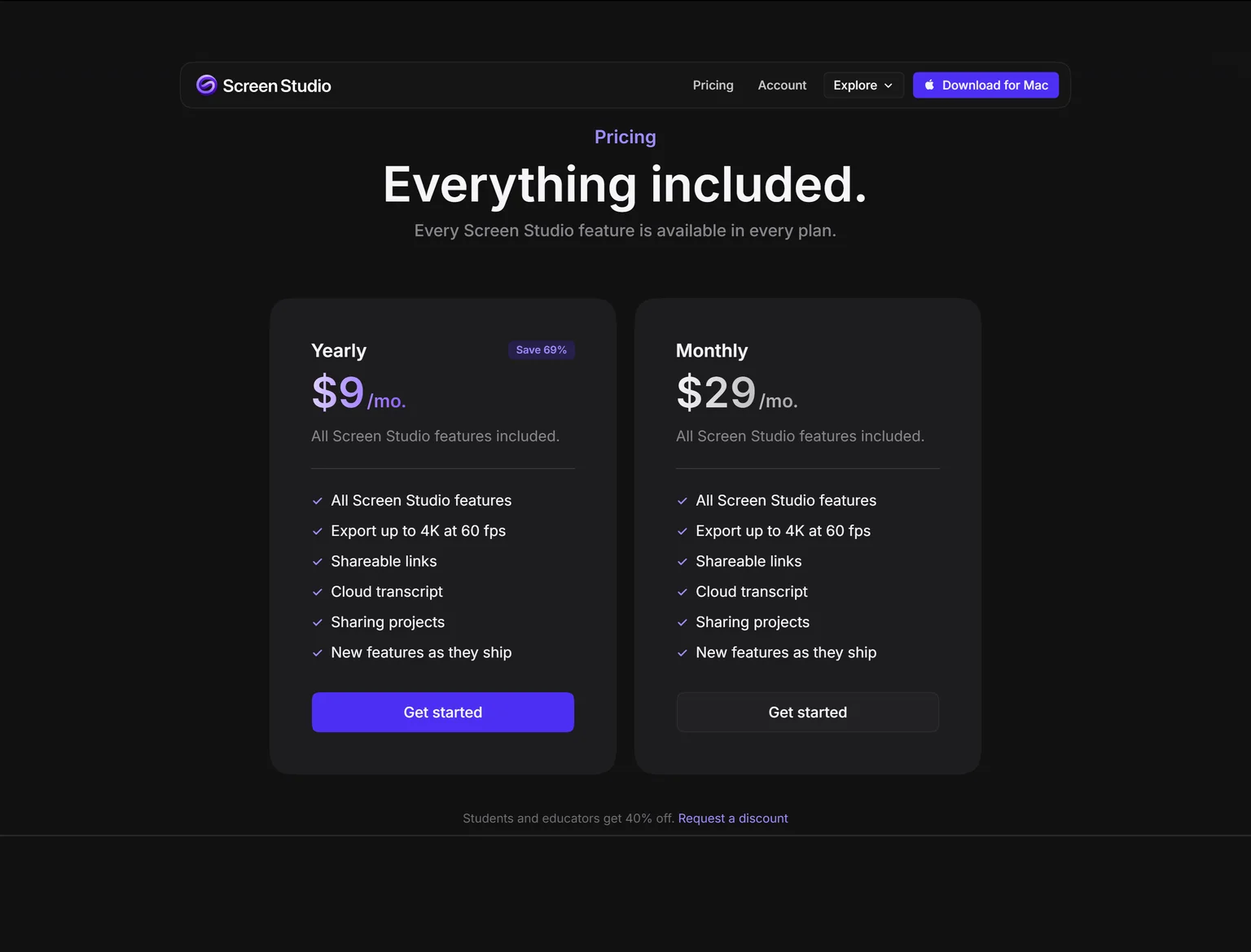
- Verified facts. Every price, limit and plan detail comes from the vendor's own page, and a script re-checked each one on September 30, 2026. Screen Studio draws its prices as graphics, so we read them from our screenshot.
- Dropped tools. Slack, Teams and Zoom appear on Capterra's list but are not screen recorders. CANVID, PandaStudio and Tella appear only on their own lists.
- No affiliate links. No vendor on this page pays us for a mention or a click.
GuideClarity publishes this page and is listed first. We describe its weaknesses with the same directness as everyone else's, and the facts about it come from the same public pages.
1. GuideClarity: best for SaaS teams that want product demo videos, explainer videos, blog posts and other marketing assets generated automatically from their product features
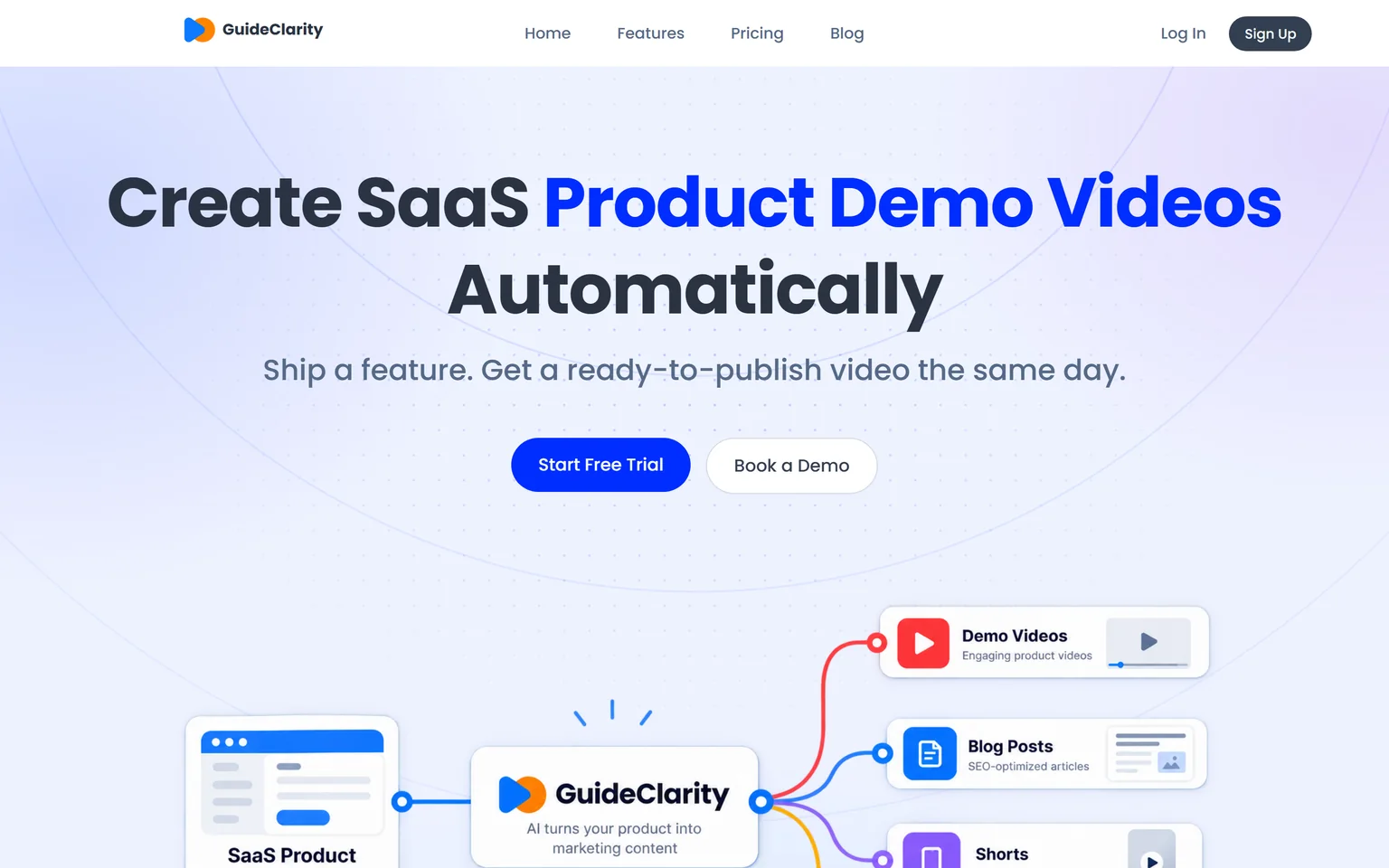
GuideClarity creates SaaS product demo videos automatically. It is best for SaaS teams that want to turn product features into marketing content automatically, without manually recording, scripting, editing and recreating the same content for every channel. It creates demo videos, feature explainers, shorts, blog posts, screenshots and launch assets. SaaS companies that ship features often get the most from it, from a single founder to a large marketing team.
What GuideClarity does
ScreenPal records your screen and lets you edit the result. GuideClarity starts from your product. It generates the demo video and the explainer video automatically from your live product URL, so nobody records or edits. From the same feature it turns one release into a demo video, shorts, a blog post, social posts, screenshots and an announcement. Our guide on making a SaaS demo video that converts shows what a good one needs.
GuideClarity pricing
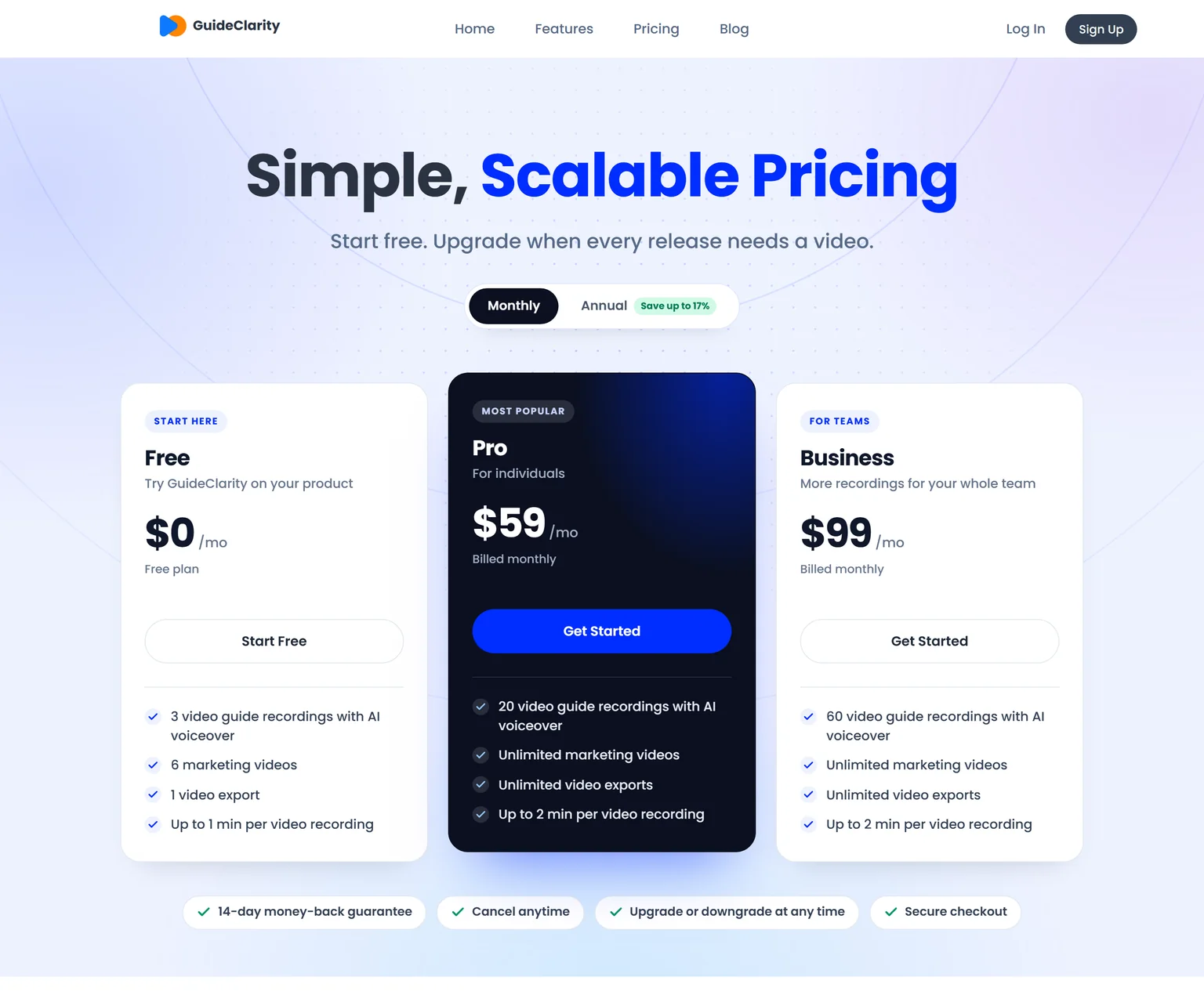
GuideClarity has three plans. The free plan includes 3 video guide recordings with AI voiceover and 6 marketing videos. Pro costs $59 a month billed monthly and includes 20 video guide recordings, or $49 a month billed yearly. Business costs $99 a month and includes 60 video guide recordings. Every paid plan carries a 14-day money-back guarantee.
Strengths
- No recording, script or editing. Review and publish is the work.
- One feature in, a whole launch kit out, with the videos, docs, shorts and blog post shaped for their channels.
- Monthly or yearly billing.
- Videos stay in step with what shipped.
- A free plan to test on a real feature before paying.
Weaknesses
- Built for SaaS product and feature content, not for classroom lessons or other kinds of footage.
- Not a general screen recorder. Teachers and IT teams that record ad hoc screens are better served by a recorder.
- Not for agencies that produce brand films.
Who GuideClarity is for
GuideClarity fits founders, heads of marketing, marketing teams and product marketers at SaaS companies, from a single founder to a large marketing team. It is easy enough to start that small teams adopt it first, and it scales to large marketing teams. The GuideClarity features page lists every output.
GuideClarity vs ScreenPal
ScreenPal records a screen you walk through and hosts the video. GuideClarity generates the video automatically from your live product URL, and produces the documentation, shorts, blog post and the complete marketing package from the same feature. ScreenPal is the better pick for teachers and quick screen recordings. GuideClarity is the better pick when the goal is a product video and the launch content around it.
2. Loom: best for quick video messages with monthly billing
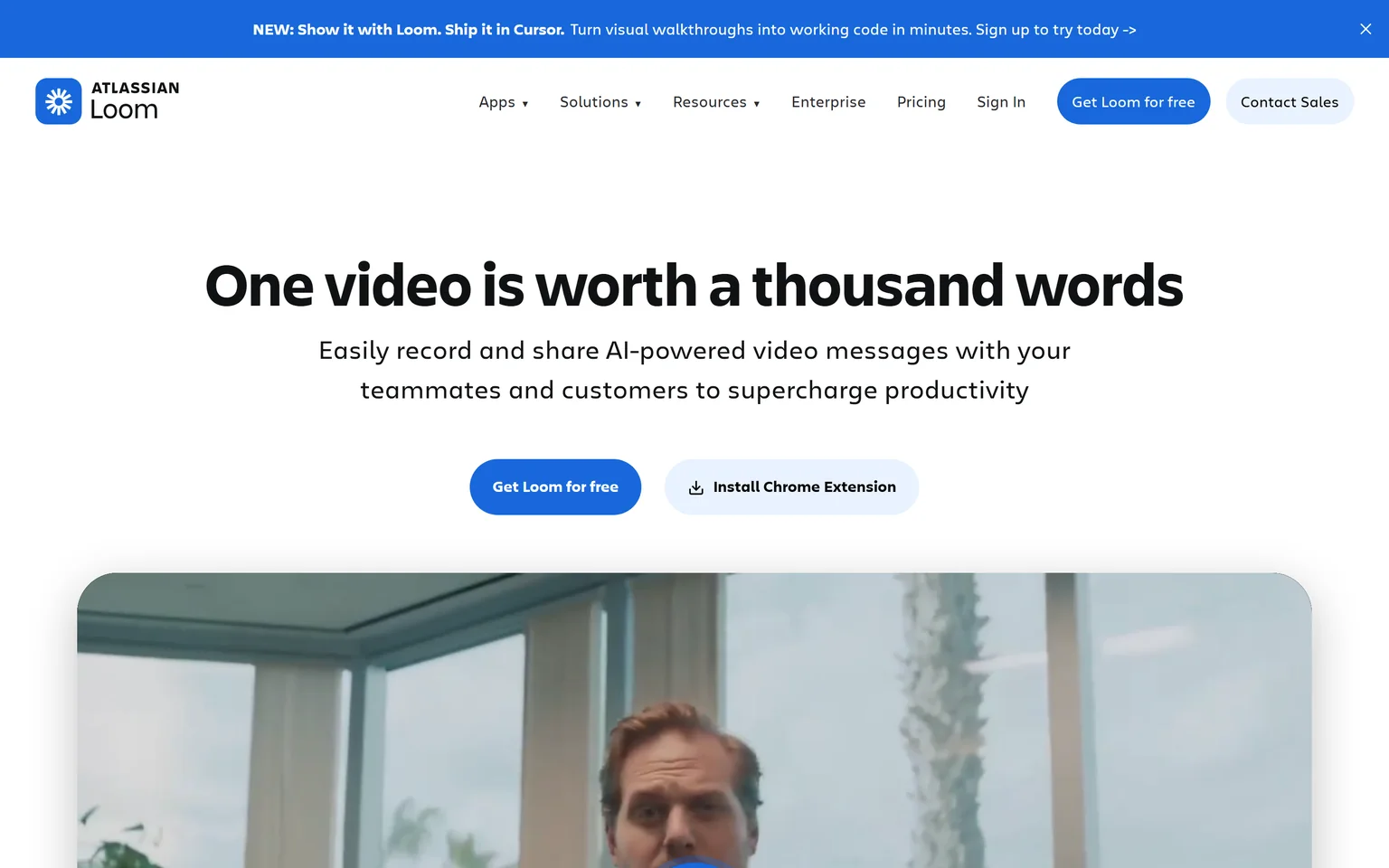
Loom lets you record and share AI-powered video messages with teammates and customers. It is the ScreenPal alternative named most often in search results, because it records and shares a link in seconds. Teams that send updates, feedback and walkthroughs get the most from it. Teachers who need quizzes and deep editing will miss ScreenPal's tools.
What Loom does
Loom records from a Chrome extension, desktop app or mobile app and shares a link at once. Viewers leave comments and emoji reactions. The free plan transcribes in 50+ languages.
Loom pricing
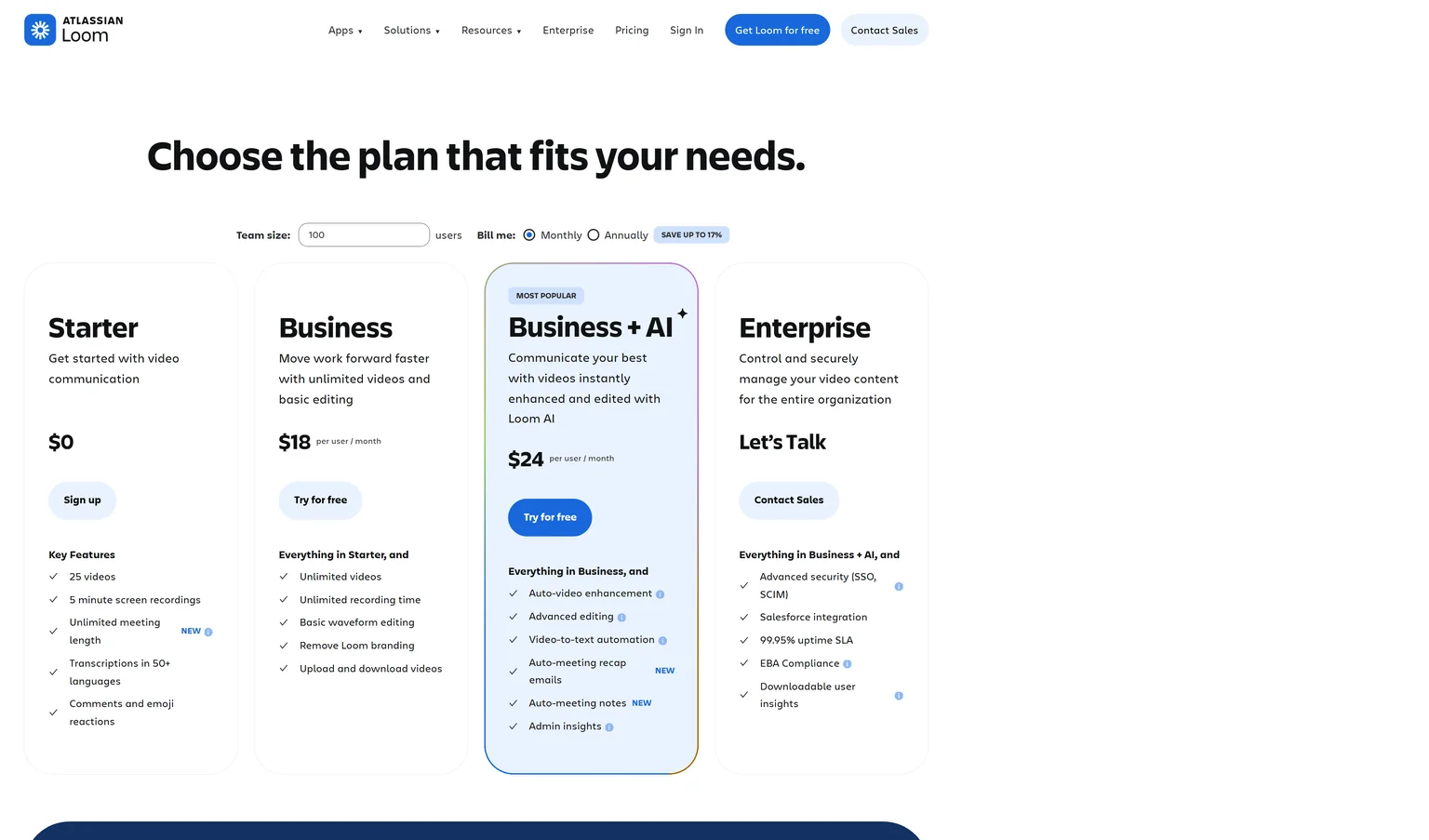
Starter is free with 25 videos per person and 5 minute screen recordings. Business costs $18 per user a month billed monthly, with unlimited videos and recording time. Business + AI costs $24 per user a month and adds filler word removal.
Strengths
- Record and share in seconds.
- Monthly billing on paid plans.
- Comments and reactions on every video.
Weaknesses
- Costs more per user than ScreenPal.
- Free recordings capped at 5 minutes.
- No quizzes like ScreenPal's.
Who Loom is for
Loom fits workplace teams that talk through screens every day. Our Loom alternatives page covers its own rivals.
Loom vs ScreenPal
Loom Business costs $18 per user a month billed monthly. ScreenPal Deluxe costs $4.00 a month paid annually for an unlimited recorder and full editor. ScreenPal wins on price and editing. Loom wins on instant sharing and monthly billing.
3. OBS Studio: best for free, open source recording with no limits
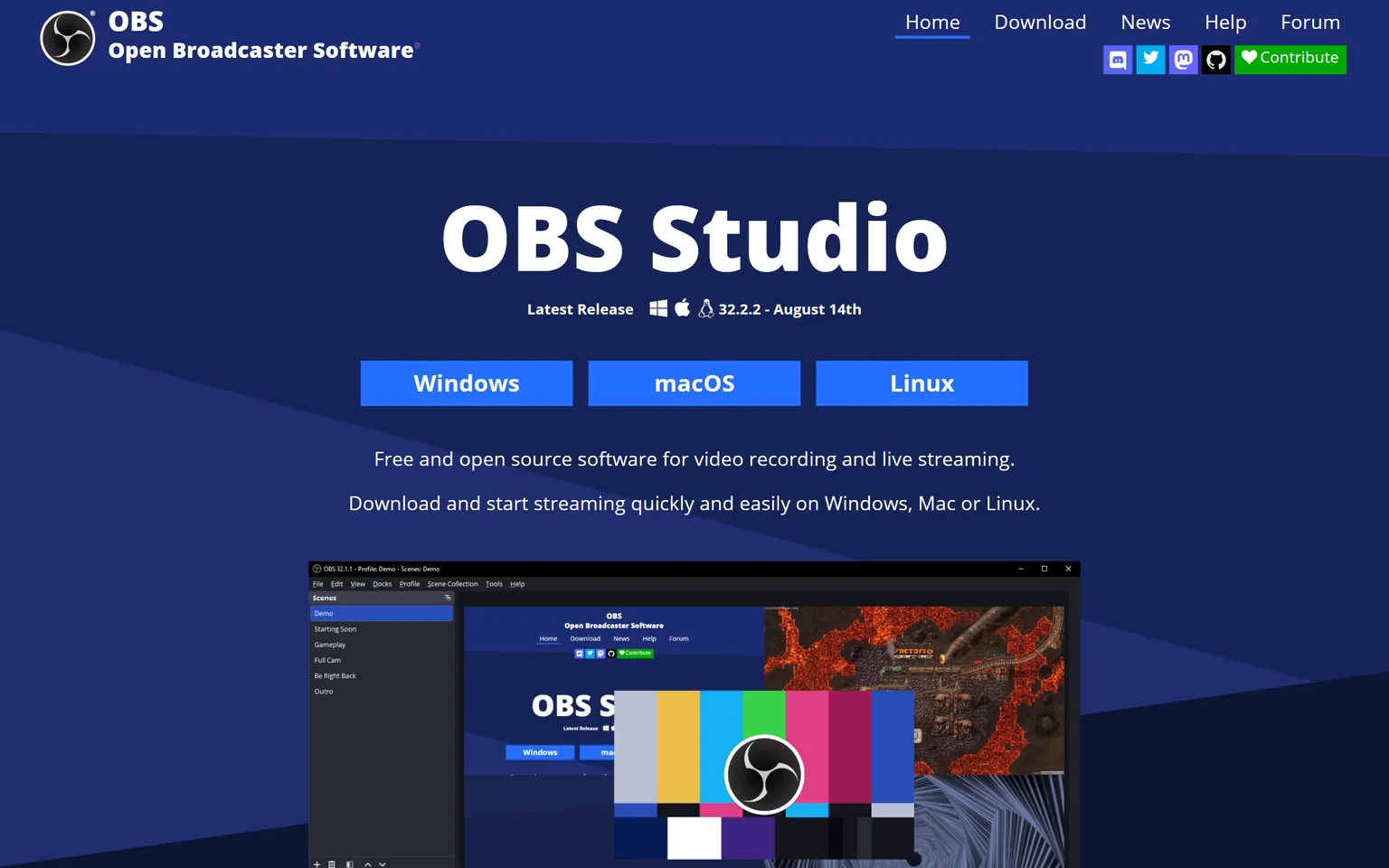
OBS Studio is free and open source software for video recording and live streaming. There is no paid plan, no watermark and no time limit to count. Streamers, YouTubers and anyone who wants full control of their recording setup get the most from it. People who want a simple recorder with editing built in may find it complex.
What OBS Studio does
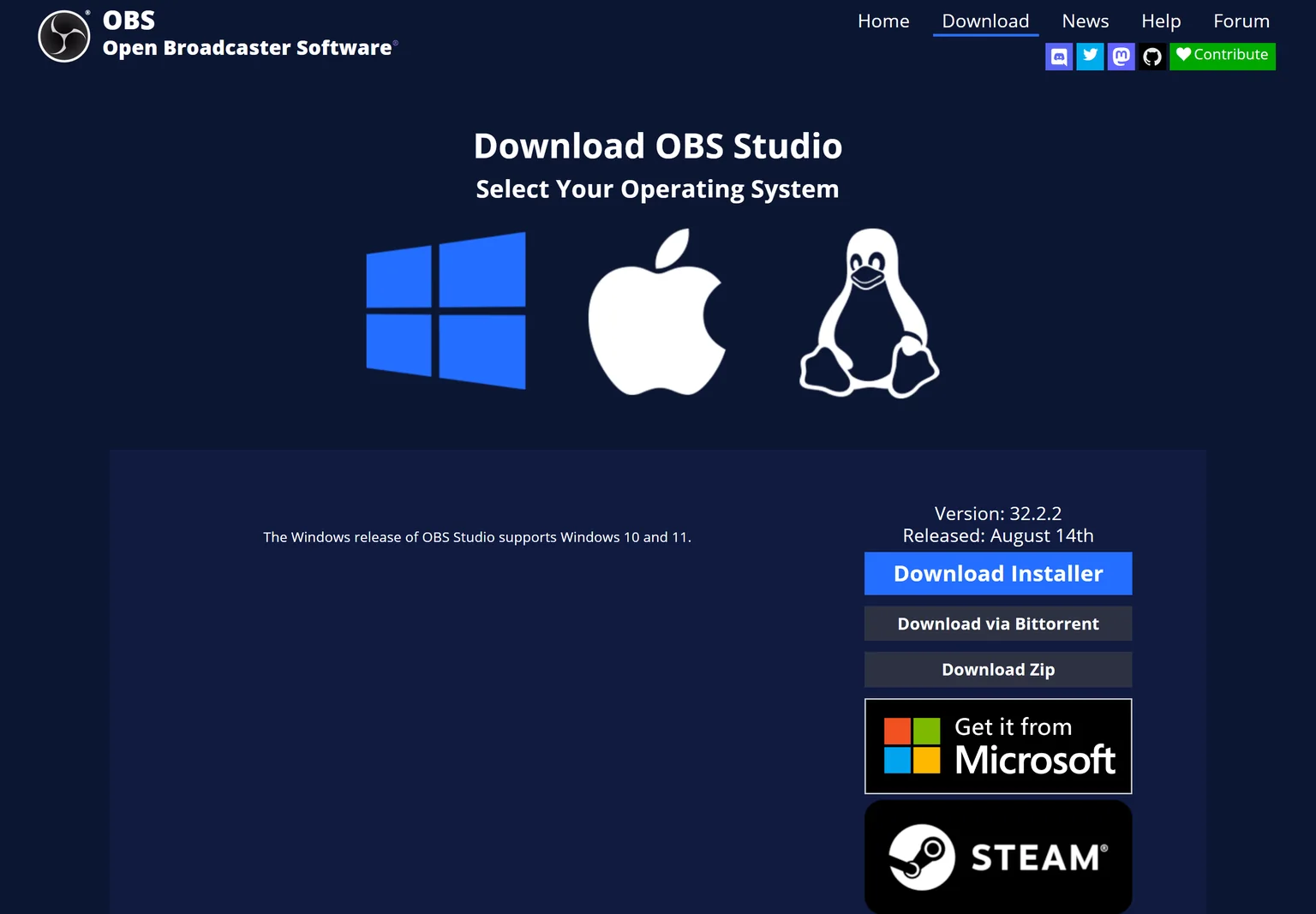
OBS Studio records and streams scenes built from windows, webcams, images and text. It runs on Windows, Mac or Linux, and it supports Windows 10 and 11 and macOS 13.0 or newer. It does not include a video editor, so you edit elsewhere.
OBS Studio pricing
OBS Studio is free for everyone. There is no pricing page because there is nothing to buy. Our screenshot shows its download page instead.
Strengths
- Free and open source.
- No watermark and no time limit.
- Runs on Windows, Mac and Linux.
Weaknesses
- No built-in video editor.
- More setup than a simple recorder.
- No hosting or share links.
Who OBS Studio is for
OBS Studio fits streamers and technical users who record often and edit in another app. Teachers who want to record, edit and share in one place will find ScreenPal or Clipchamp easier.
OBS Studio vs ScreenPal
ScreenPal Free has a 15 minute recording limit and 10 hosted videos. OBS Studio is free and open source with no such limits. ScreenPal wins on editing, hosting and quizzes. OBS Studio wins on freedom and cost.
4. Clipchamp: best for free browser editing with watermark-free exports
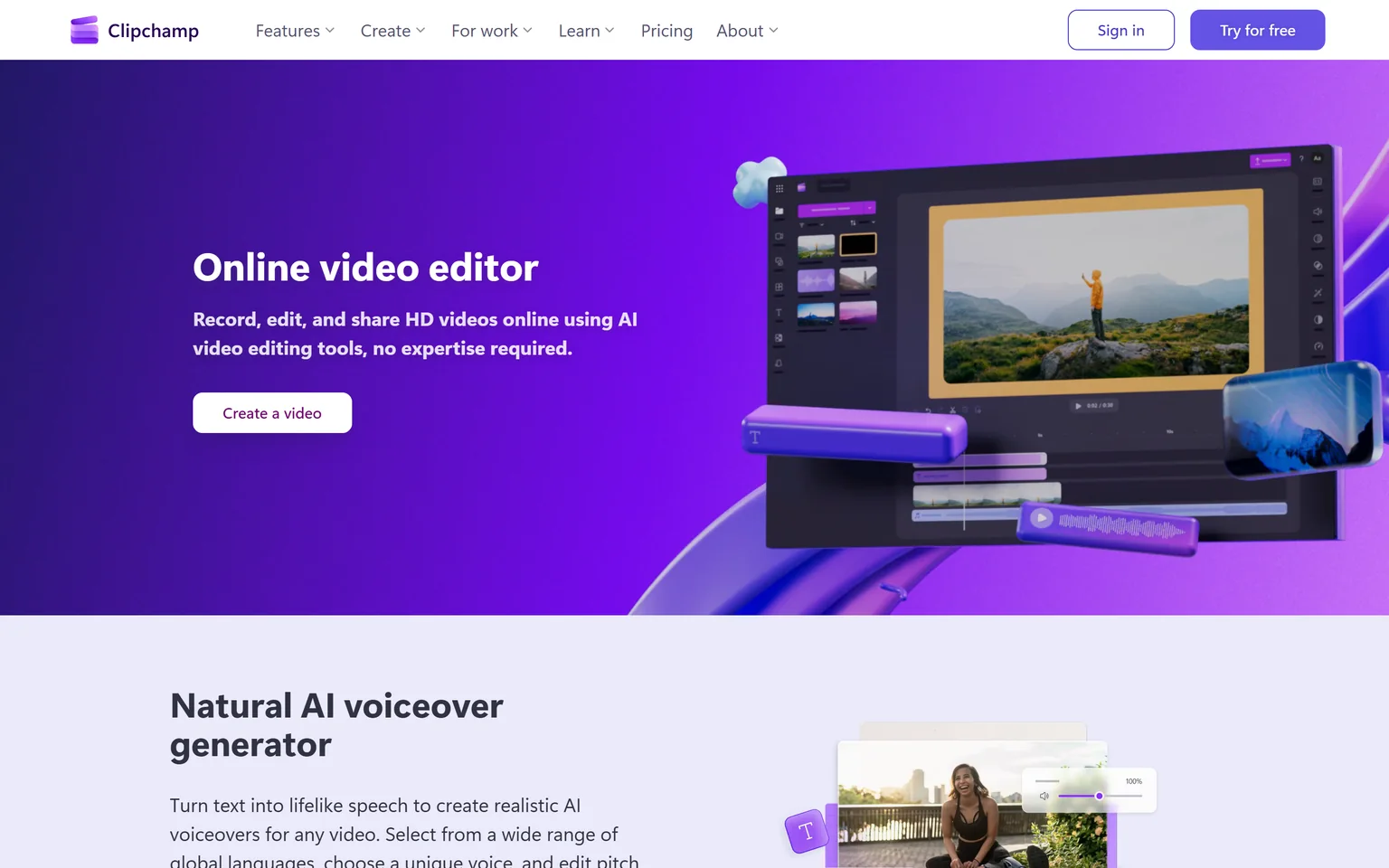
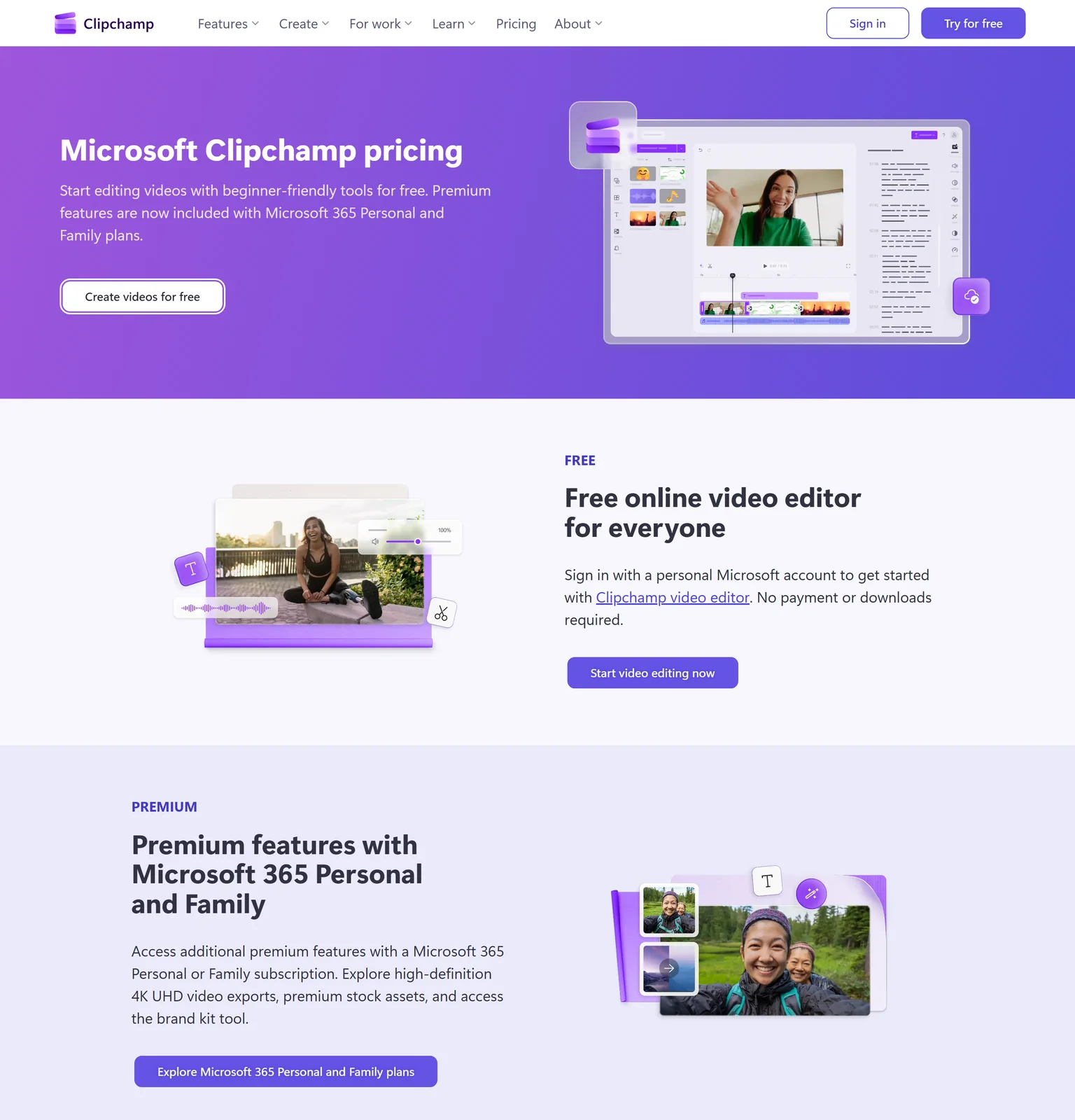
Clipchamp is Microsoft's online video editor. It starts free with a personal Microsoft account, with no payment or downloads. Free exports carry no watermark and go up to 1080p. Students, teachers and small teams on Windows get the most from it. Teams that need hosting, quizzes or 4K on the free plan should look elsewhere.
What Clipchamp does
Clipchamp includes a screen, camera and voice recorder on the free plan. It generates AI captions in over 80 languages. It runs in the browser and sits in the Start menu on Windows 11.
Clipchamp pricing
Clipchamp is free to start, and premium features are included with Microsoft 365 Personal and Family plans. Premium raises exports to 4K. The Clipchamp page does not list a separate price.
Strengths
- Free, watermark-free 1080p exports.
- Screen, camera and voice recording built in.
- AI captions in many languages.
Weaknesses
- 4K exports need Microsoft 365.
- No video hosting or quizzes.
- Tied to a Microsoft account.
Who Clipchamp is for
Clipchamp fits students, teachers and home users who want a free editor with no watermark. Our Descript alternatives page covers more editors.
Clipchamp vs ScreenPal
ScreenPal Free caps recordings at 15 minutes with 10 hosted videos. Clipchamp's free plan exports up to 1080p with no watermark. ScreenPal wins on hosting and quizzes. Clipchamp wins on a free editor with clean exports.
5. Camtasia: best for detailed tutorials on a desktop timeline
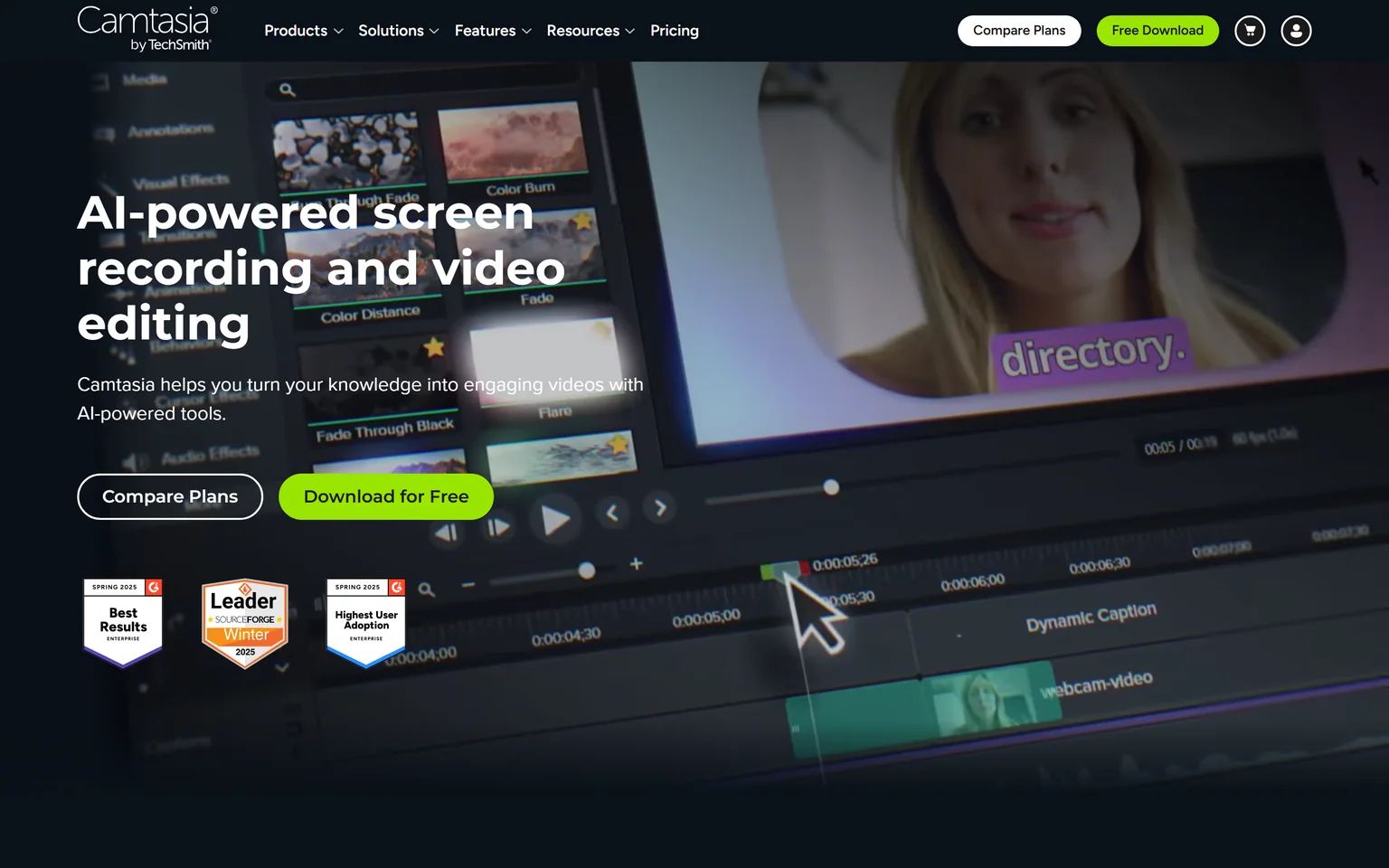
Camtasia is TechSmith's AI-powered screen recording and video editing software. It records screen, camera, system audio and microphone on separate tracks. Trainers and course builders who outgrow ScreenPal's editor get the most from it. It costs more, so light users should stay with ScreenPal. We compare its rivals on our Camtasia alternatives page.
What Camtasia does
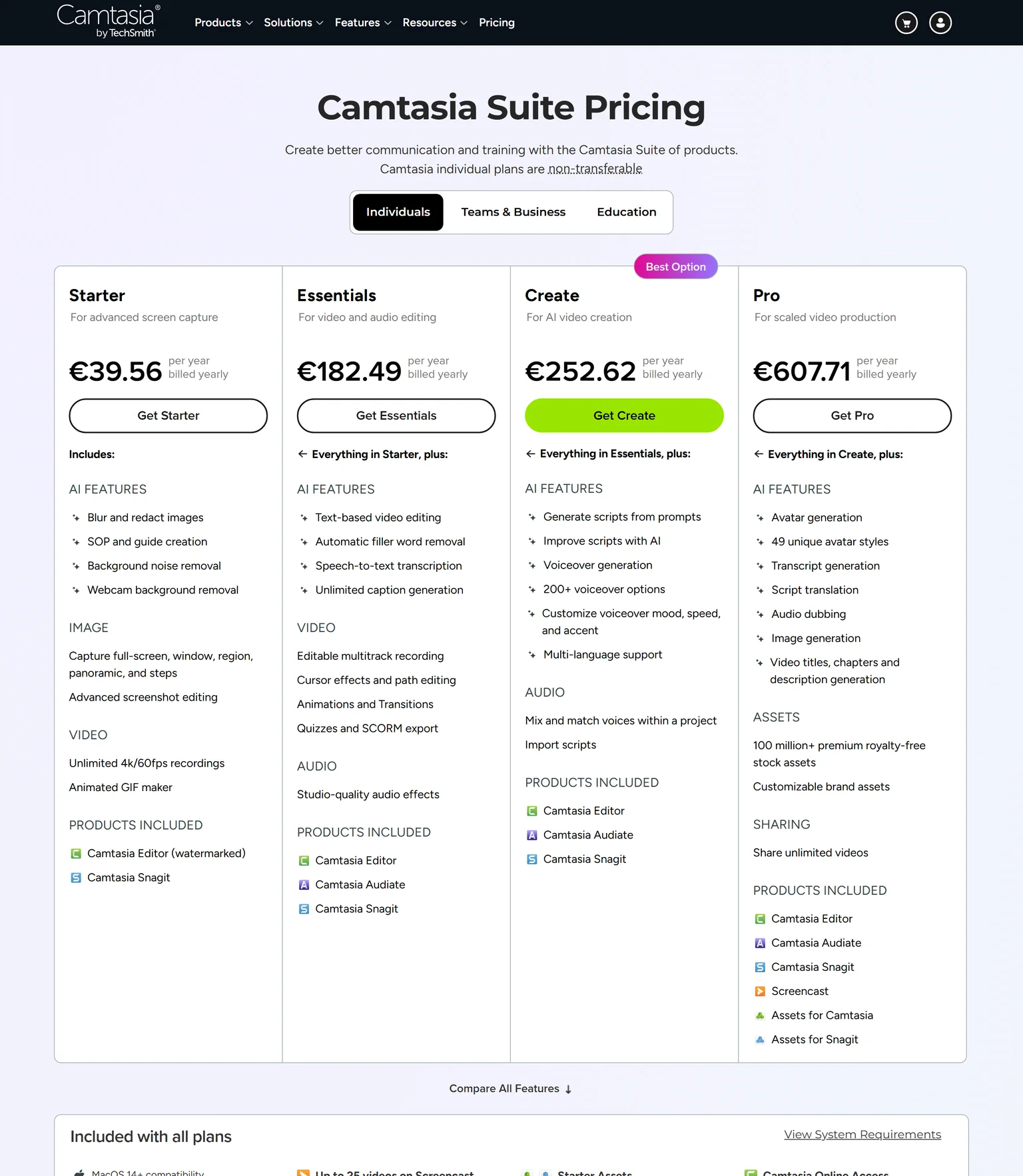
Camtasia records and edits on a multitrack timeline with cursor effects and callouts. Essentials adds text-based editing and quizzes with SCORM export. It records in 4K at 60fps, and it works without an internet connection.
Camtasia pricing
Essentials costs 182.49 EUR a year and is the first plan with a watermark-free editor. Create costs 252.62 EUR a year and adds AI voiceover. Plans are billed yearly.
Strengths
- A multitrack timeline built for tutorials.
- Quizzes and SCORM export on Essentials.
- 4K recording and offline use.
Weaknesses
- Much higher price than ScreenPal.
- Yearly billing only.
- More to learn.
Who Camtasia is for
Camtasia fits trainers and support teams who build polished courses and need SCORM. Casual recorders will get more value from ScreenPal or Loom.
Camtasia vs ScreenPal
Both add quizzes to videos. ScreenPal Max costs $10.00 a month paid annually, while Camtasia Essentials costs 182.49 EUR a year with SCORM export. Camtasia wins on editing depth. ScreenPal wins on price and hosting.
6. Snagit: best for screenshots, step guides and short captures
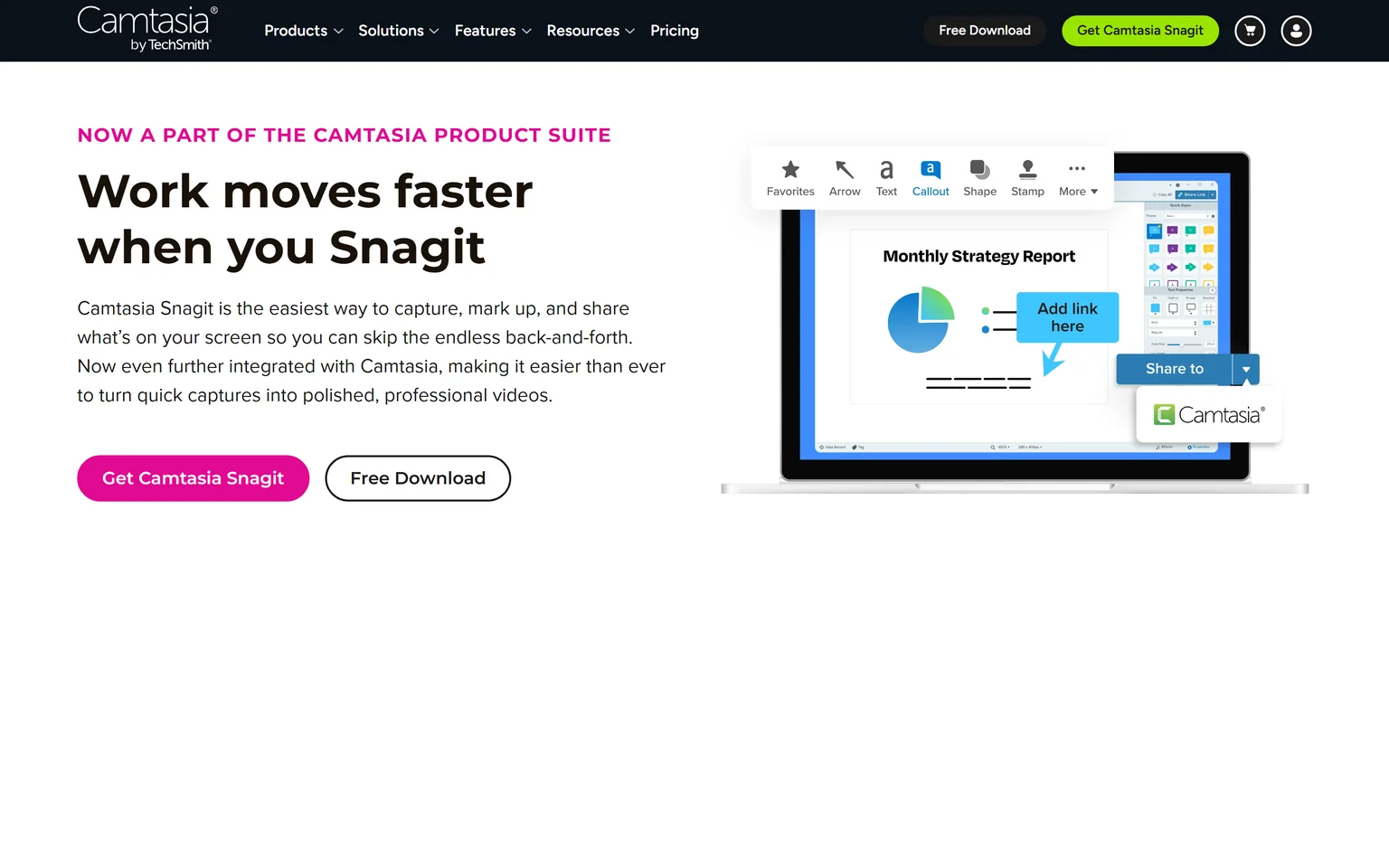
Snagit is TechSmith's capture tool, and it is now part of the Camtasia product suite. It focuses on screenshots, marked-up images and short screen recordings. People who use ScreenPal mostly for screenshots and quick how-tos get the most from it. Anyone who edits long videos needs Camtasia or ScreenPal alongside it.
What Snagit does
Snagit's step recorder generates visual step-by-step guides from your clicks. It adds scrolling capture, picture-in-picture video recording and GIF creation. AI smart redact hides sensitive information in screenshots.
Snagit pricing
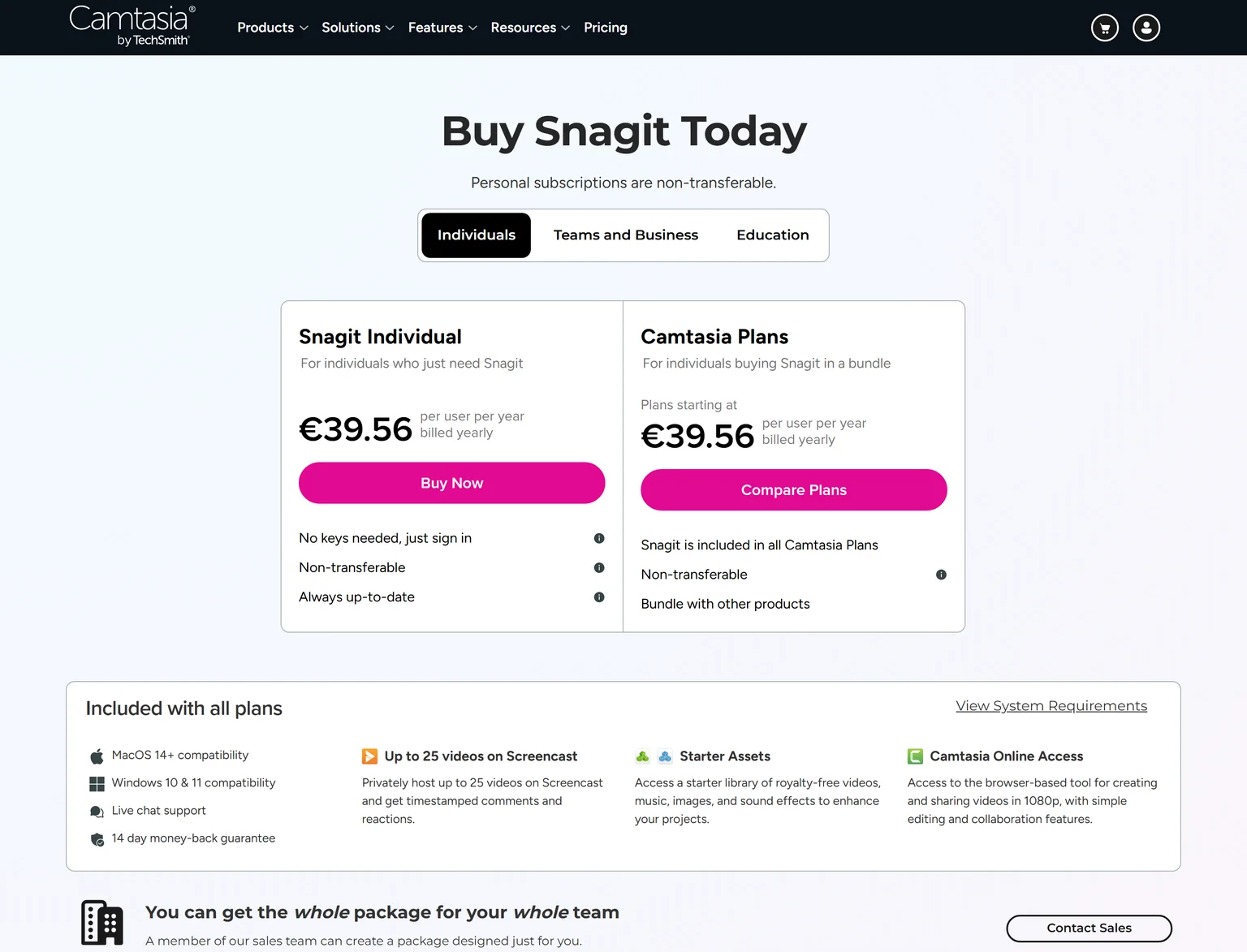
Snagit Individual costs 39.56 EUR per user per year, billed yearly. Snagit is also included in all Camtasia plans. TechSmith plans carry a 14 day money-back guarantee.
Strengths
- Screenshots, markup and step guides in one tool.
- Scrolling capture and AI redaction.
- Low yearly price.
Weaknesses
- Not built for long video editing.
- Yearly billing only.
- Hosting is limited to TechSmith's small Screencast allowance.
Who Snagit is for
Snagit fits support, IT and documentation teams that explain software with images more than video. Our SaaS demo software buyers guide covers where screenshots beat video.
Snagit vs ScreenPal
Both capture screenshots and screen recordings. Snagit costs 39.56 EUR a year and adds a step recorder for guides. ScreenPal Deluxe costs $4.00 a month paid annually with a full video editor and hosting. Pick Snagit for images and guides. Pick ScreenPal for videos.
7. Screen Studio: best for polished product demos recorded on a Mac
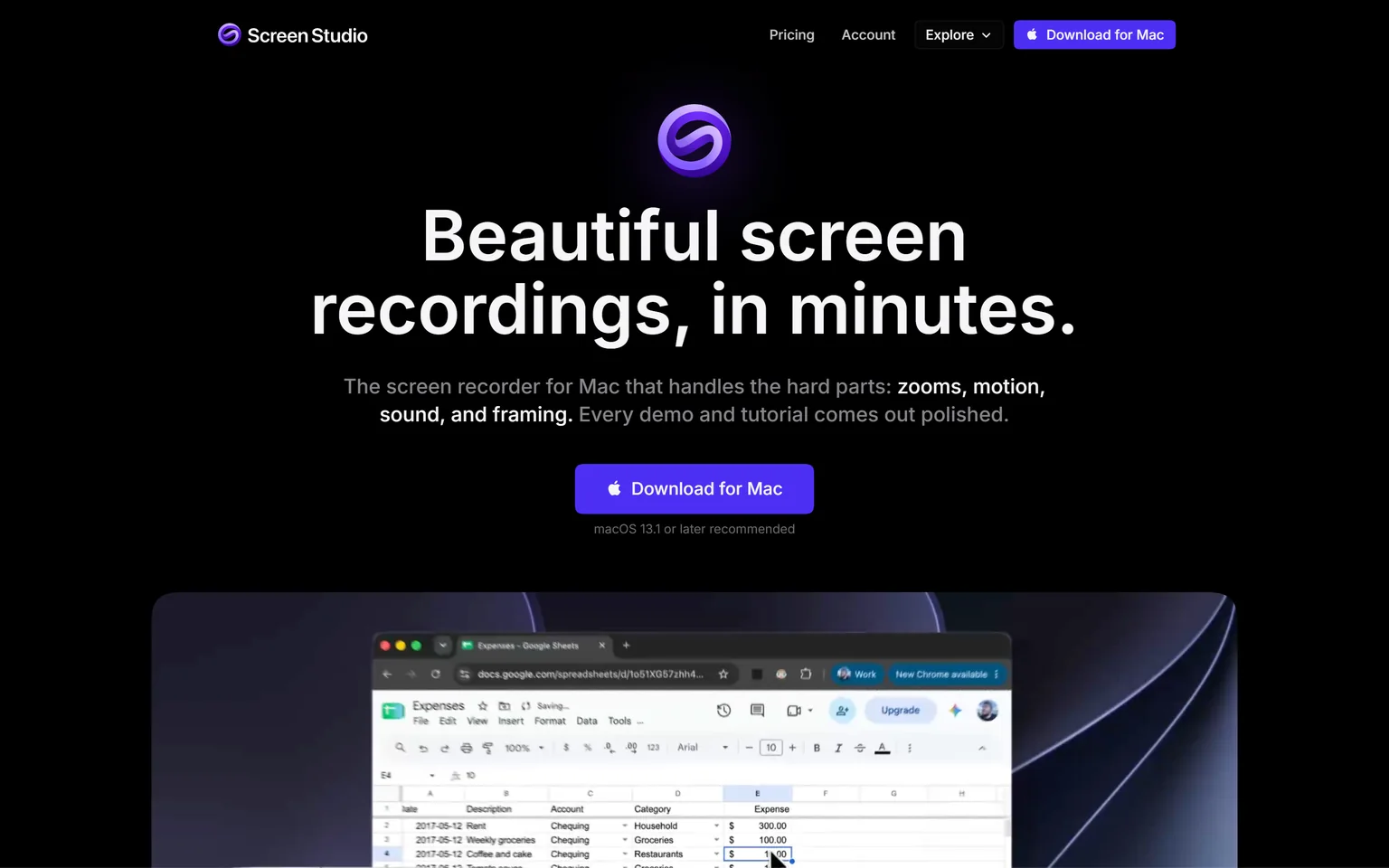
Screen Studio is a screen recorder for Mac and recommends macOS 13.1 or later. It makes recordings look produced with automatic zooms and smooth motion. Founders and product marketers who record demos on a Mac get the most from it. Windows and Chromebook users cannot run it, so they should look higher on this list.
What Screen Studio does
Screen Studio zooms in automatically on the moments that matter, based on where you clicked. It edits by transcript and removes filler words and pauses. One take becomes wide, square and vertical videos, and it exports MP4 up to 4K at 60 fps, or a GIF.
Screen Studio pricing
Screen Studio sells one plan, and every feature is available in every plan. The prices are drawn as graphics, so we read them from our screenshot. It costs $9 a month billed yearly, or $29 a month billed monthly.
Strengths
- Automatic zooms and smooth cursor motion.
- Editing by transcript.
- Wide, square and vertical exports from one take.
Weaknesses
- Mac only.
- No free plan.
- No quizzes or video hosting library.
Who Screen Studio is for
Screen Studio fits Mac users who record product demos and social clips and care how they look. Our Screen Studio alternatives page covers its rivals.
Screen Studio vs ScreenPal
ScreenPal runs on Windows, Mac, iOS, Android and Chromebook. Screen Studio is Mac only, at $9 a month billed yearly. ScreenPal wins for classrooms and mixed devices. Screen Studio wins when the recording must look polished.
Which ScreenPal alternative should you choose
Pick by what you record and who watches. If it is a product demo video or explainer video and the launch content around it, GuideClarity generates all of it from your product. If you record your own screen, the right pick depends on budget, device and how much editing you need.
- If you ship SaaS features and want the demo video, explainer video, shorts and blog post the same day, pick GuideClarity.
- If you send quick video messages at work, pick Loom.
- If you want a free recorder with no limits, pick OBS Studio.
- If you want a free editor with no watermark, pick Clipchamp.
- If you build detailed courses with SCORM, pick Camtasia.
- If you mostly take screenshots and step guides, pick Snagit.
- If you record polished demos on a Mac, pick Screen Studio.
- If you want cheap recording, editing, hosting and quizzes on any device, stay with ScreenPal. Its Deluxe plan is hard to beat on price.
Frequently asked questions about ScreenPal alternatives
How much does ScreenPal cost?
ScreenPal Free is free forever with a 15 minute recording limit. Deluxe costs $4.00 a month paid annually, and Max costs $10.00 a month paid annually. Team Business costs $8.00 per user a month paid annually. The plans page shows no monthly billing option.
What is the best completely free screen recording software?
OBS Studio is free and open source software for video recording and live streaming, with no watermark or time limit. Clipchamp's free plan exports up to 1080p with no watermark and includes a recorder. ScreenPal Free works too, within its 15 minute recording limit.
What do most YouTubers use to screen record?
There is no single answer. OBS Studio suits creators who record and stream often, because it is free and open source and handles scenes. Mac users who want polished demos can use Screen Studio, which turns one take into wide, square and vertical videos. Editing usually happens in a separate editor.
Is Loom better than ScreenPal?
Loom is better for sharing quick messages at work, with unlimited recording time on Business at $18 per user a month. ScreenPal is better on price and editing, with Deluxe at $4.00 a month paid annually and quizzes for teaching. Pick by who watches and how much you edit.
Which ScreenPal alternative works on a Chromebook?
ScreenPal itself runs on Chromebook. Among the alternatives, Loom records from a Chrome extension, and Clipchamp runs in the browser. OBS Studio and Screen Studio need Windows, Mac or Linux desktops, and Screen Studio needs a Mac. Schools with mixed devices usually find ScreenPal or Loom easiest to roll out.
Which ScreenPal alternative makes product videos?
GuideClarity generates product demo videos and explainer videos from your live product URL, with the docs, shorts, blog post and social posts from the same feature. Screen Studio makes polished recordings on a Mac. Our guide to AI explainer videos for SaaS compares the formats.
How did you verify the prices on this page?
We opened each vendor's pricing page in a browser on September 30, 2026 and saved its text. A script then checked every quoted price and limit against that saved page. Screen Studio draws its prices as graphics, so we read them from our own screenshot. TechSmith showed euros from our location.
Sources and verification
Every fact above was read on the pages below on September 30, 2026. The vendor's own page wins over any third-party listing when they disagree. Prices change, so check the vendor before you buy.
- ScreenPal plans page, checked September 30, 2026.
- ScreenPal homepage, checked September 30, 2026.
- GuideClarity pricing page, checked September 30, 2026.
- GuideClarity homepage, checked September 30, 2026.
- Loom pricing page, checked September 30, 2026.
- Loom homepage, checked September 30, 2026.
- OBS Studio homepage, checked September 30, 2026.
- OBS Studio download page, checked September 30, 2026.
- Clipchamp pricing page, checked September 30, 2026.
- Clipchamp homepage, checked September 30, 2026.
- Camtasia store and pricing, checked September 30, 2026.
- Camtasia homepage, checked September 30, 2026.
- Snagit store, checked September 30, 2026.
- Snagit homepage, checked September 30, 2026.
- Screen Studio homepage and pricing, checked September 30, 2026.
Recording product walkthroughs by hand every time you ship? GuideClarity generates the demo video, the explainer video, the shorts, the blog post and the social posts from your live product, with nothing to record and nothing to edit.
The free plan includes 3 video guide recordings with AI voiceover, so you can run a real feature through it before paying.